YouTube Kids: how to set it up properly and what the limits of parental control are
Step-by-step guide to setting up YouTube Kids safely and understanding how far its parental control goes (and where it doesn't). Ages, filters, advertising and alternatives.
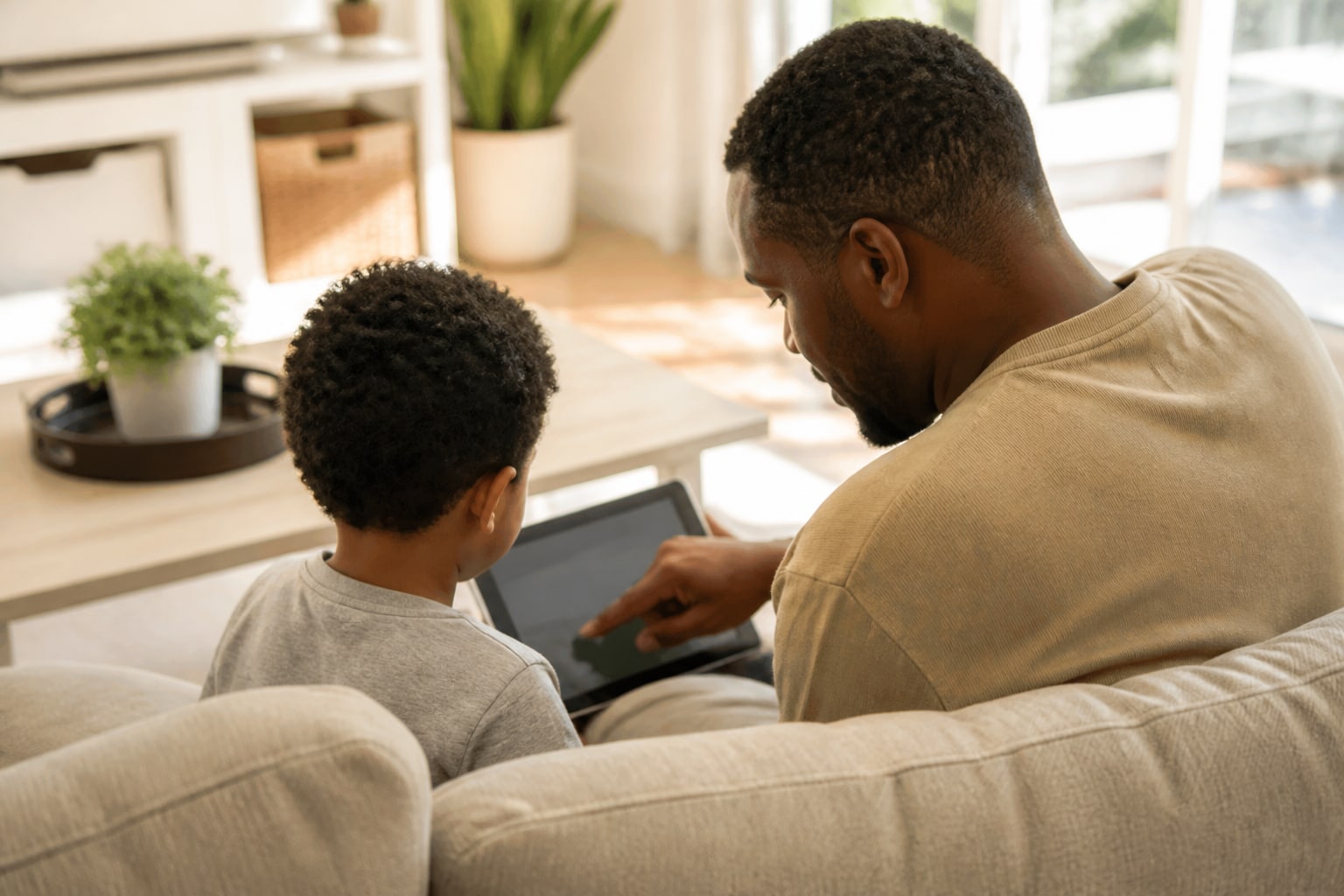
If you have children at home, it’s very likely that YouTube Kids has made its way onto the family tablet at some point. It’s one of the most widely used apps among minors in Spain, and also one that raises the most doubts: Is it safe? Does the filter really work? Can I choose what they watch?
In this guide I’ll show you how to get it properly set up in ten minutes and, above all, what things not the parental control does, even though many families assume it does. Spoiler: no filter replaces supervision, but a good configuration greatly reduces the scares.
What YouTube Kids is and how it differs from YouTube
YouTube Kids is the children’s version of the platform, launched by Google in 2015 and available in Spain since 2017. It works as a separate app (iOS, Android, Smart TV) and offers a filtered catalogue using a combination of human review and algorithms.
The main difference from the regular YouTube is that it doesn’t show all the content on the platform, but a selection designed for minors. It also doesn’t allow comments, uploading videos, or chatting. Advertising is limited too (there are no ads for alcohol, gambling, adult cosmetics, etc.), although it still exists.
| Data | Value |
|---|---|
| Recommended age according to the app | From 4 years old (with supervision) |
| Legal minimum age for a children’s Google account | 13 years old (Family Link for minors) |
| Child profiles | Up to 4 per family account |
| Available age ranges | Preschool (up to 4), Little Kids (5-8), Older Kids (9-12) |
| Comments | Disabled |
| Advertising | Limited, non-personalised |
At what age it makes sense to use it
Here there is an important nuance. The app itself says “from 4 years old”, but both the WHO and the Spanish Association of Paediatrics (AEP) recommend avoiding screens before the age of 2 and limiting them strongly between 2 and 5. You can read more about this in our guide on screens before age 2 and what alternatives there are.
In practice, many families start using it between the ages of 3 and 5, always with an adult nearby. From around 8-9, kids often already ask for YouTube “for the big kids”, and it’s worth assessing this case by case.
How to set up YouTube Kids step by step
The process varies slightly between mobile, tablet and Smart TV, but the logic is the same.
1. Download and start
Download the official app from Google Play or the App Store. When you open it for the first time it will ask you to sign in with your adult Google account (not the child’s). This step is key: without a linked adult account, you cannot access the advanced settings.
2. Create a profile for each child
You can create up to four profiles. For each one you enter a name, month and year of birth, and a photo if you wish. The age determines the default content level, although you can fine-tune it later.
3. Choose the content mode
This is the most important setting. YouTube Kids offers four modes:
- Preschool (up to 4 years): creativity videos, early learning, songs.
- Little Kids (5-8 years): cartoons, music, crafts.
- Older Kids (9-12 years): video games, mainstream music, science, family vlogs.
- Approved content only: you manually choose each channel or video they can watch. It is the most restrictive mode and the most recommended for children under 6.
4. Set a parental control PIN
From “Settings” (padlock icon at the bottom right), create a 4-digit PIN or solve a verification multiplication. Without this PIN your child cannot switch profiles, access settings or leave child mode.
5. Turn off search
Within each profile, you can disable the search function. That way your child only sees what appears on the home screen (selected by the algorithm or by you). It is one of the most effective measures for avoiding surprises.
6. Enable the timer
In the settings there is a built-in timer: when the time you have set (from 1 to 60 minutes) runs out, the app closes on its own. It is not foolproof (it can be reopened), but it helps set a clear limit without having to negotiate constantly.
7. Review the history
From your adult account you can see everything each profile has watched, block specific videos or channels, and flag inappropriate content. Checking it once a week gives you a lot of information.
What the limits of parental control are (what they don’t tell you)
Here comes the honest part. YouTube Kids is safer than the open YouTube, but it is not a 100% filtered space. These are its real limitations:
- The algorithmic filter fails. Google itself acknowledges that occasional inappropriate content can slip through, especially in the “Little Kids” and “Older Kids” modes. Reports such as the well-known “Elsagate” (2017) showed apparently children’s videos with violent or sexual scenes disguised as cartoons. Google improved the filters, but the problem still appears sporadically.
- There is advertising. Although limited and non-personalised, children see ads. Many are designed to look like video content and are hard for minors aged 7-8 and under to tell apart.
- Covert commercial content is not well filtered. “Unboxing” videos of toys, sponsored challenges or channels that are essentially long adverts get past the filters easily.
- Settings do not sync between devices. If you have YouTube Kids on the tablet and on the Smart TV, you have to configure each one separately.
- The “Approved content only” mode is a lot of work. Approving video by video is tedious, and approving a whole channel means accepting everything it uploads in the future, without prior review.
- It does not block prolonged viewing. The timer can be skipped by restarting the app.
In short: parental control is a layer of protection, not a shield. If your child watches YouTube Kids alone for hours, sooner or later they will come across something you would rather they hadn’t seen.
Good practices to make it really work
Beyond the settings, what makes the difference is how you supervise its use:
- Watch together, at least at the beginning. Especially before the age of 7-8. Talking about what appears helps your child understand what advertising is, what is fiction and what is real.
- “Approved content only” mode for the youngest. It takes time to set up, but for children under 6 it is worth it.
- Clear time slots. Better “twenty minutes after snack” than “whenever you want”. It provides predictability and avoids constant negotiations.
- No screens in the bedroom. The AEP recommends that audiovisual consumption takes place in shared spaces.
- Check the history every week. Five minutes and you’ll find out what hooks them, which new channels have appeared and whether anything seems off.
- Talk about what they watch. Open questions such as “what did you like most today?” draw out more information than an interrogation.
If you want to go deeper into the filters available on the device itself, you may be interested in this comparison of parental controls on phones and tablets.
Alternatives and complements
If YouTube Kids doesn’t convince you, there are options. RTVE Clan and Pocoyó TV offer closed catalogues, without advertising and without an algorithm. Streaming platforms (Netflix, Disney+, Prime Video) have fairly well-curated children’s profiles. For music, Spotify Kids works with similar logic to YouTube Kids but without video.
For children under 5, scheduled audiovisual consumption (one chosen episode, not endless scrolling) generates less overstimulation than any algorithmic recommendation app, however childish it may be.
Frequently asked questions
From what age can my child use YouTube Kids alone? There is no single age. The app is recommended from 4 years old with supervision. Most paediatricians suggest active supervision until at least 7-8 years old.
Can I block a specific channel? Yes. On any video or channel, tap the three dots and select “Block”. It will stop appearing on all profiles linked to your account.
Does YouTube Kids collect data about my child? It collects limited data (declared age, viewing history, interactions) in order to function, but it does not use personalised advertising on minors, according to its current policy aligned with COPPA regulations and the European GDPR.
Why do strange videos appear even with children’s mode on? Because the filter combines human review with algorithms and is not perfect. If you see something inappropriate, report it from the three dots on the video: Google removes the content within 24-48 hours in most cases.
Is YouTube Kids better than regular YouTube with restrictions? For children under 10-11, YouTube Kids. YouTube’s restricted mode filters less and allows comments, messages and subscriptions to any channel, which greatly increases the risk.